Troubleshooting guide
iPhone Photo Dates Changed After Export: Fix the Date Shift
Category: Photo Transfer
You copied your iPhone photo library to an external drive, but the files now show different capture dates in the destination library.
Check the original metadata first
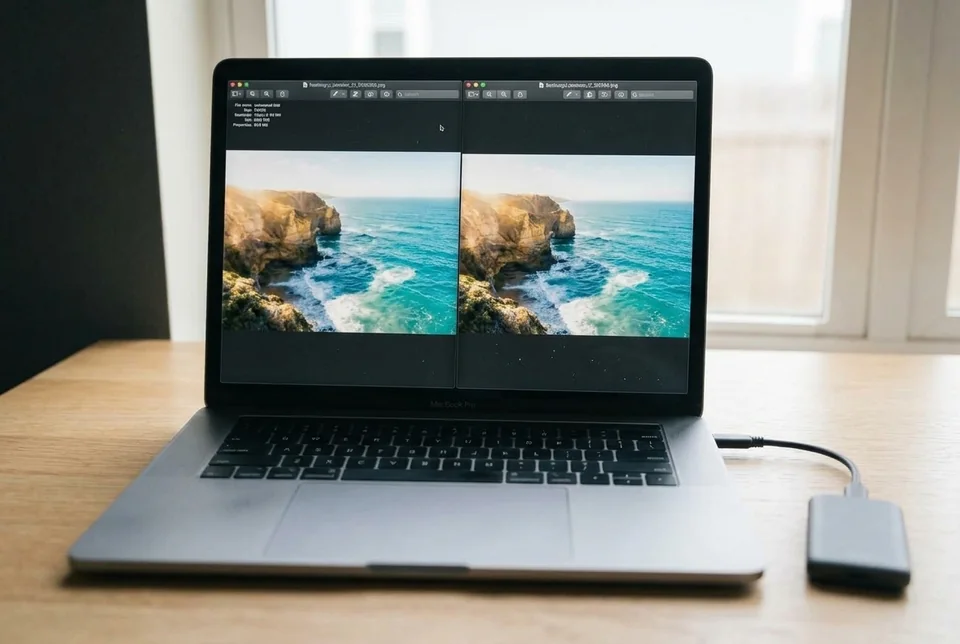
Before changing anything, confirm the dates are actually wrong. Open one affected photo on the iPhone and note its date and time. Then inspect the same file on the external drive using a tool that reads EXIF metadata, not just the file system date. If the EXIF capture date matches the iPhone but the library displays a different date, the library is reading a modified or missing metadata field. If the EXIF date itself differs, the export process rewrote it.
Check the export method and destination format
Review how the photos were copied. If you used a file manager that strips metadata, or if the drive is formatted with a file system that does not preserve extended attributes, dates can shift. Confirm the drive format supports the metadata you need. Also check whether the destination library imported files by file creation date instead of embedded capture date. A common cause of iphone photo dates changed after export is a library setting that sorts by import date.
Verification test
Copy a single test photo with a known date to a new folder on the drive. Compare its EXIF capture date and the library display date. If the EXIF date is correct but the library date is wrong, adjust the library’s date source setting. If both are wrong, re-export using a method that preserves metadata.
Rollback and recovery
Do not delete the original iPhone library until you confirm the destination dates are correct. If dates are already wrong, keep the source files intact and re-copy affected photos after fixing the export method. For persistent metadata loss,